

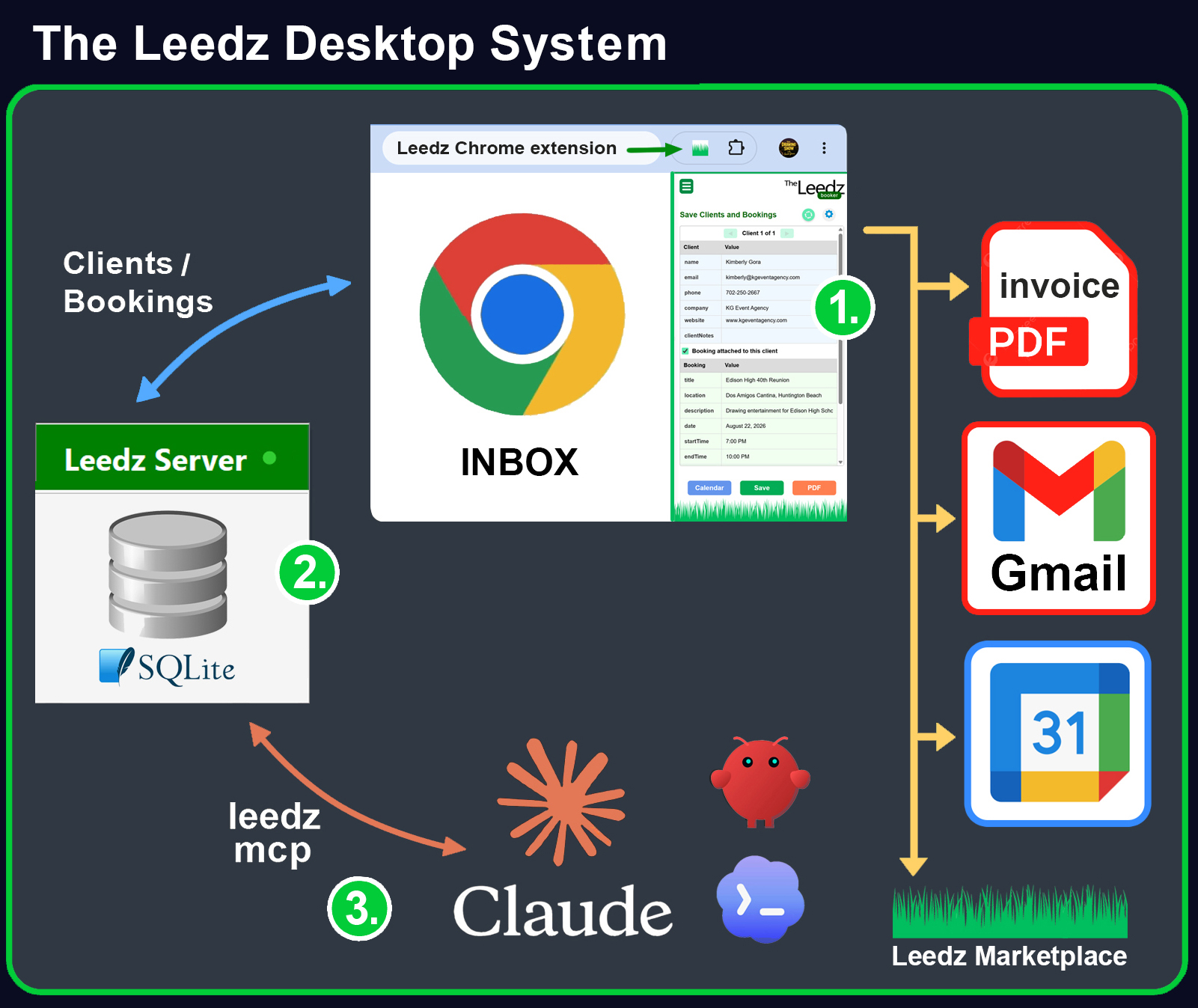
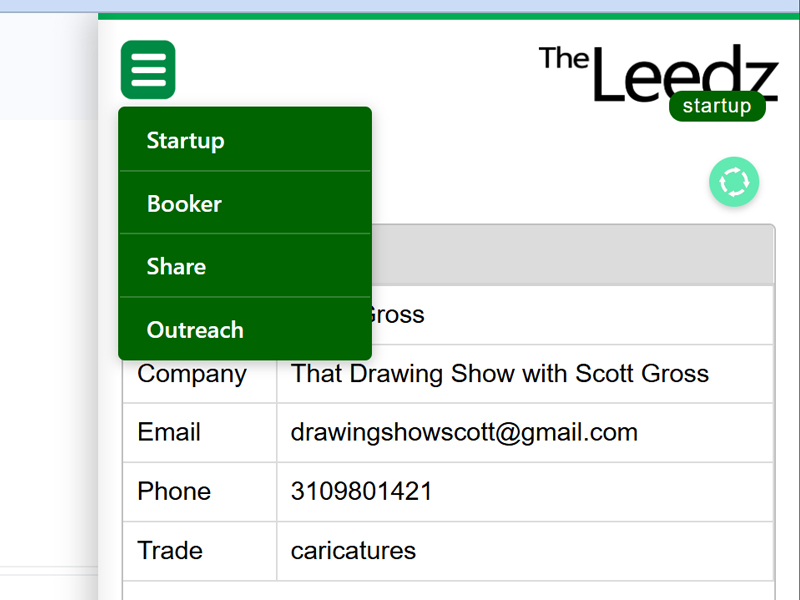
1) Chrome Extension: Reads a Gmail conversation thread and uses any LLM API key to:
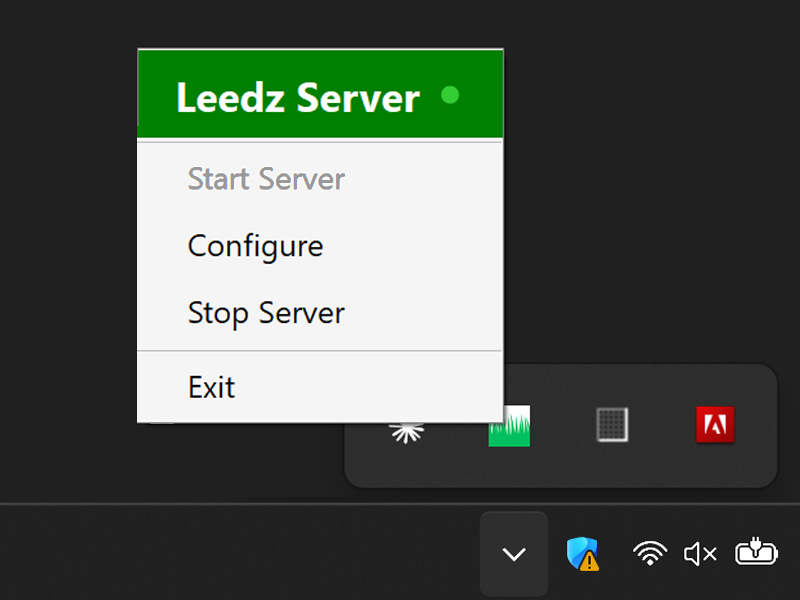
2) Leedz Server: Keep your Clients and Bookings private in a lightweight database you control from the system tray. 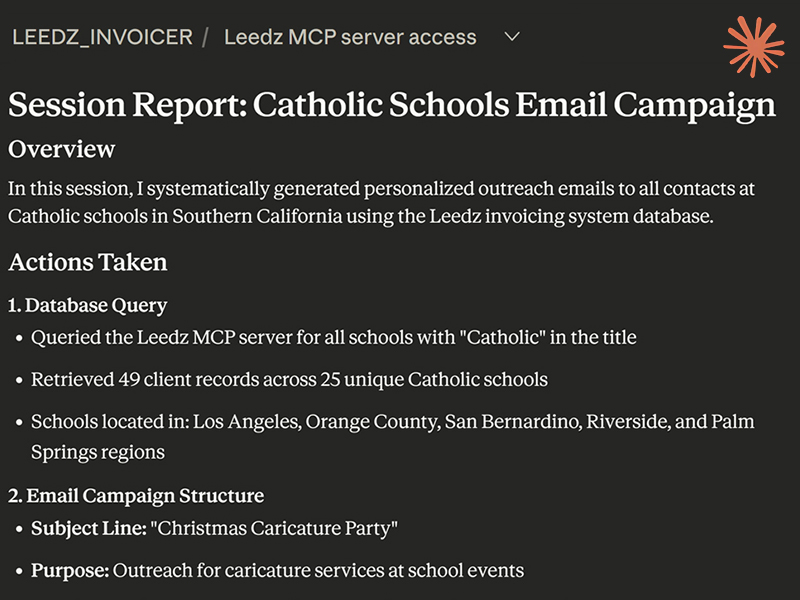
3) MCP plugin that turns any desktop AI product (Claude, Codex, OpenClaw, etc...) into a personal assistant and business analyst. Requirements
This open-source project is available on GitHub at github.com/scottgrossworks/invoicer |
|
TO DO FIRST
Two files decide whether Leedz Desktop works for your business. Fill them in right after you extract the zip — the app will not run correctly until you do.
1. Describe your business — chrome-extension\DOCS\VALUE_PROP.md
This is the most important file. Open it in Notepad and write, in plain
English, who you are and what you sell. The AI reads this on every parse:
it is how the extension tells your contact details apart from a
client's, prices a booking, fills the invoice header, and writes outreach
that sounds like you. Trade, Product Name, Seller, Email and Phone are
required — the extension will not start without them. The rest
(website, socials, service area, rates, bank details for invoices) is
optional but the more you write, the better the drafts.
2. Paste your LLM key — chrome-extension\LLM_KEY.json
One line: { "api-key": "sk-ant-YOUR-KEY-HERE" }
Any provider works (Claude, ChatGPT, OpenRouter). Nothing that needs AI
— parsing, drafting, invoices — runs without it.
Your database — nothing to set up
Everything you save goes into one file:
server\data\leedz.sqlite. It ships empty and the server already
uses it. Back it up by copying that one file.
STEP 1 — Get the zip. Enter your email above and click the secure download link we send you. Extract the zip to a permanent location (like C:\Program Files\Leedz) — your database and settings will live here.
STEP 2 — Start the Leedz Server. Open the server folder and double-click TheLeedz.exe (the green grass icon). A Leedz icon appears in your Windows system tray (click the ^ arrow by the clock if you don't see it). The server starts automatically in the background — no windows open. Right-click the tray icon for Start / Stop / Configure.
STEP 3 — Load the Chrome Extension. In Chrome, go to chrome://extensions, turn on Developer mode (top-right), click Load unpacked, and select the chrome-extension folder from the zip. The Leedz grass icon appears in your Chrome toolbar.
STEP 4 — Connect them. Click the Leedz icon in Chrome to open the sidebar. On the Startup page, enter your LLM API key, then Save. The Database Name appears when the extension finds your server — you're ready to work.
STEP 5 (optional) — Connect your AI. The zip includes an MCP plugin that lets Claude Desktop, Claude Code, or any MCP-compatible AI query your client and booking database in plain English. See MCP_INSTRUCTIONS.txt in the zip for the one-paste setup.
Step-by-step INSTALL_INSTRUCTIONS.txt with troubleshooting included in the zip
Questions? Feature requests? Email theleedz.com@gmail.com